DASH
Deadlines, Approvals and Signals Hub
User manual · version 1.6.4
Installation, first sign-in and everyday use
Installation, first sign-in and everyday use
 by TMAC
by TMAC
by TMACDASH is a small panel that sits on your Windows desktop and helps you keep track of your everyday work. It reads your mail, your calendar, your To Do tasks and, if you wish, your Teams chats, and shows you at a glance:
You do not have to enter anything: DASH works on the data you already have in Microsoft 365. It does not replace Outlook, Teams or your project tools: it works alongside them.
DASH-Setup-1.6.4.exe.DASH-Setup-1.6.4.exe.company.com, or the directory ID). Click Save.demo in the Application (client) ID field (no Tenant needed), click Save and then Sign in. DASH shows sample data, in the app’s language, with the “Demo mode” bar always visible; it doesn’t connect to Microsoft and doesn’t touch your data or rules. To leave: Leave demo, or clear the field or enter your Client ID.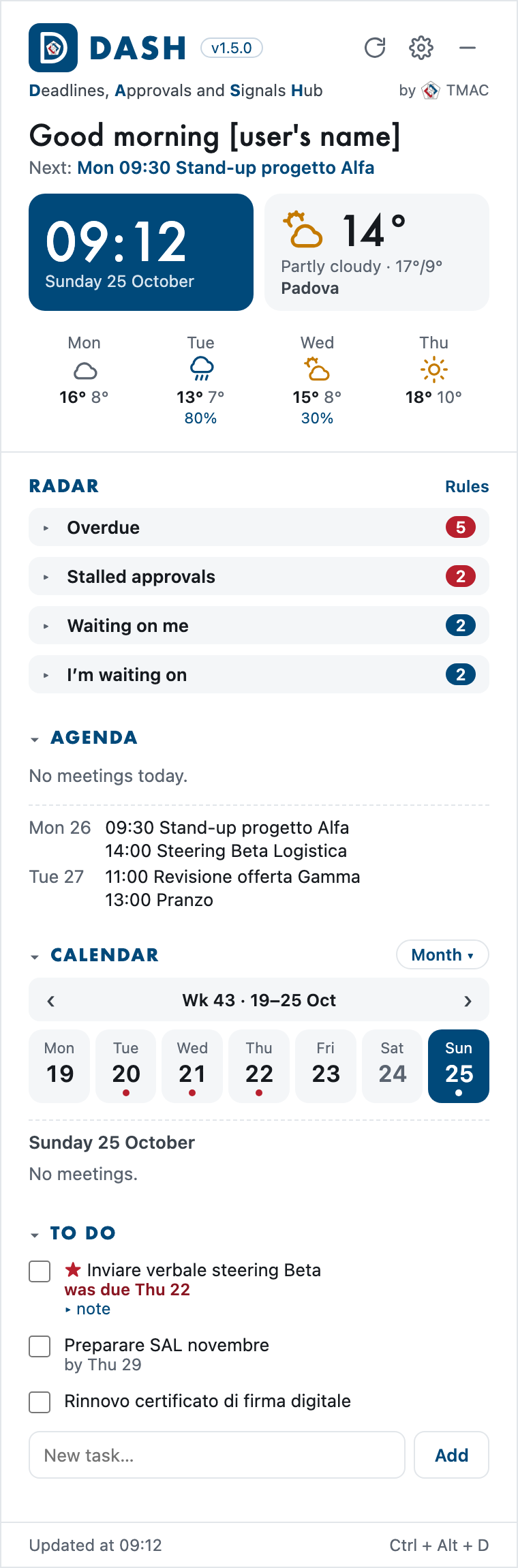
At the top: the icon, the DASH name with its version and, if set, your company logo. On the right, three buttons:
Below: greeting, next meeting, clock and weather.
Then the Radar (chapter 6) and, further down, Agenda (today’s and the next days’ meetings, with «Join» for Teams meetings), Calendar (week or month) and To Do (tick to complete, «▸ note» to read the task’s note, a field to add a new one).
Each section opens and closes when you click its title; DASH remembers your choices.
DASH behaves like a widget: it sits on the desktop and, when you click another window, it moves behind the other apps. It has not closed: to bring it to the front use the shortcut Ctrl + Alt + D, or click the DASH icon in the notification area (next to the Windows clock), or show the desktop (Win + D).
Right-clicking the icon in the notification area opens a menu with Aggiorna ora (refresh now), Impostazioni (settings), Avvia con Windows, Ripristina posizione (reset position), Esci dall'account (sign out) and Chiudi DASH (close DASH). For now this menu is in Italian only.
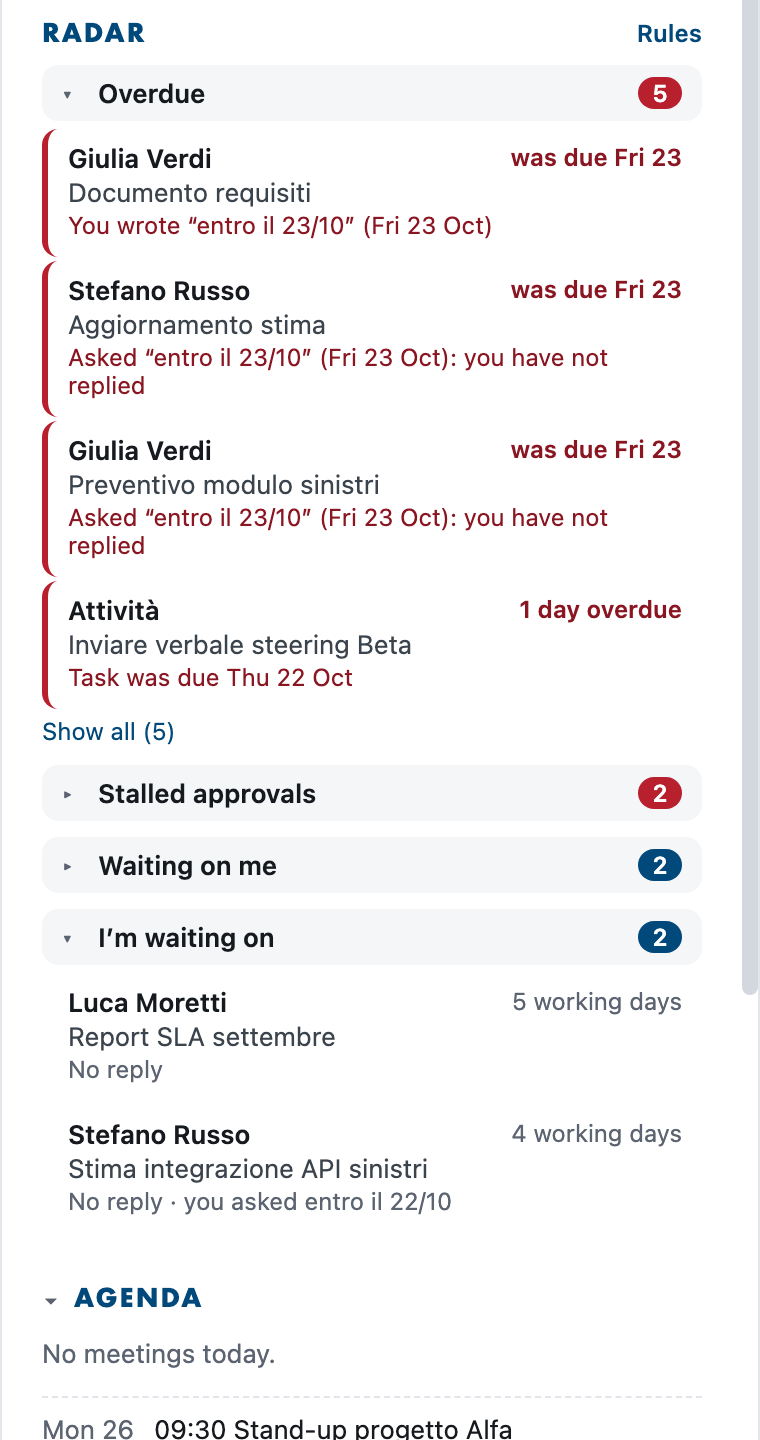
The Radar has four blocks, closed at start-up: the number next to the title tells you how many signals there are (red for «Overdue» and «Stalled approvals»). Click the title to open them.
Each signal shows who, the subject, for how many working days it has been waiting (Saturdays, Sundays and Italian public holidays do not count) and a line of explanation. A red border marks what is urgent or past due.
Click a signal to open it: the full subject and the text appear (the first lines of the email or Teams message, or the note of the To Do task). Click again to close it; to read everything use Open.
Tags: Teams (purple) if the signal comes from a Teams chat; AI if it was read by artificial intelligence.
Move the mouse over a signal to see the actions:
| Action | What it does |
|---|---|
| Reply / Open | Opens the email or meeting in the Outlook app (or the chat in the Teams app). If the app is not there, it opens the web version. |
| Read | Opens the whole signal in a larger window: who, subject, the summary and all the new text of the email or message. “Back to the Radar” closes it. |
| Move to… | Puts the signal in another group of the “By contact” view (see below). The choice also applies to future signals. |
| Follow up | Drafts a polite follow-up that you can edit. «Copy and open in Outlook» copies it and opens the email: paste it into your reply. With AI on there is also «Rewrite with AI». The follow-up text is written in Italian. |
| Resolved | It is done (perhaps in person or by phone): the signal disappears. |
| Ignore | The signal is not relevant: it disappears. |
| Ignore similar | Creates a rule: from now on, emails with the same sender or recipient and a similar subject do not enter the Radar (e.g. a client’s weekly reports). |
| Completed | To Do tasks only: marks the task as completed. |
Signals hidden with Resolved or Ignore become visible again if something new arrives in the same conversation. You can bring them all back in Radar rules › «Show them again».
At 8:30 on working days DASH sends a notification, which stays on screen until you close it, and puts the “Today’s Radar” box at the top of the Radar: the morning’s pending items, split by block (“Overdue” and “Stalled approvals” open, the others with one click). During the day the box updates itself: what you close stays crossed out with ✓, what arrives later appears with the “new” label, and at the top you see how much you have done (“3 of 9 done”). Click an item to open it; click the title to reduce the box to one line and to open it again. For now the summary text is in Italian. You can turn the summary off in Radar rules.
At the top of the Radar choose “By type” (the four blocks) or “By contact”. In the second view DASH groups the signals on its own: by company for people writing from outside (from the email domain: alfa-assicurazioni.it becomes “Alfa Assicurazioni”), by person for colleagues and personal mailboxes. Each group says what is pending, for example “Alfa Assicurazioni · 2 waiting for you · 1 overdue”.
Nothing to set up. If a group is wrong, open the signal and use Move to…: type the group name (also a new one, for example “Administration”) and choose whether it applies only to that person or to their whole company. Automatic group goes back to DASH’s suggestion. Your choices sync with your other devices.
An email you flag in Outlook becomes a to-do in the Radar: under “Waiting on me”, or under “Overdue” once the flag’s due date has passed. A flagged sent email goes under “I’m waiting on” as a follow-up. When you mark the flag as complete in Outlook, the signal closes on its own. The “DASH: importante” category brings an email into the Radar even if a rule would exclude it; “DASH: ignora” does the opposite.
With Flag emails from DASH turned on (chapter 7), signals show Flag and Complete: the flag is set and completed in Outlook too.
In the Agenda, next to meetings with other people, there is Prepare. It opens a card you can read in a minute: what is pending with the participants (also with their colleagues at the same company) and the latest exchanges of the last two weeks, each one opens with a click. With artificial intelligence on, 3 summary lines also appear at the top: the AI only receives subjects and details, never the text of emails.
15 minutes before the meeting a notification arrives: click it to open the card. You can turn the reminder off in Radar rules.
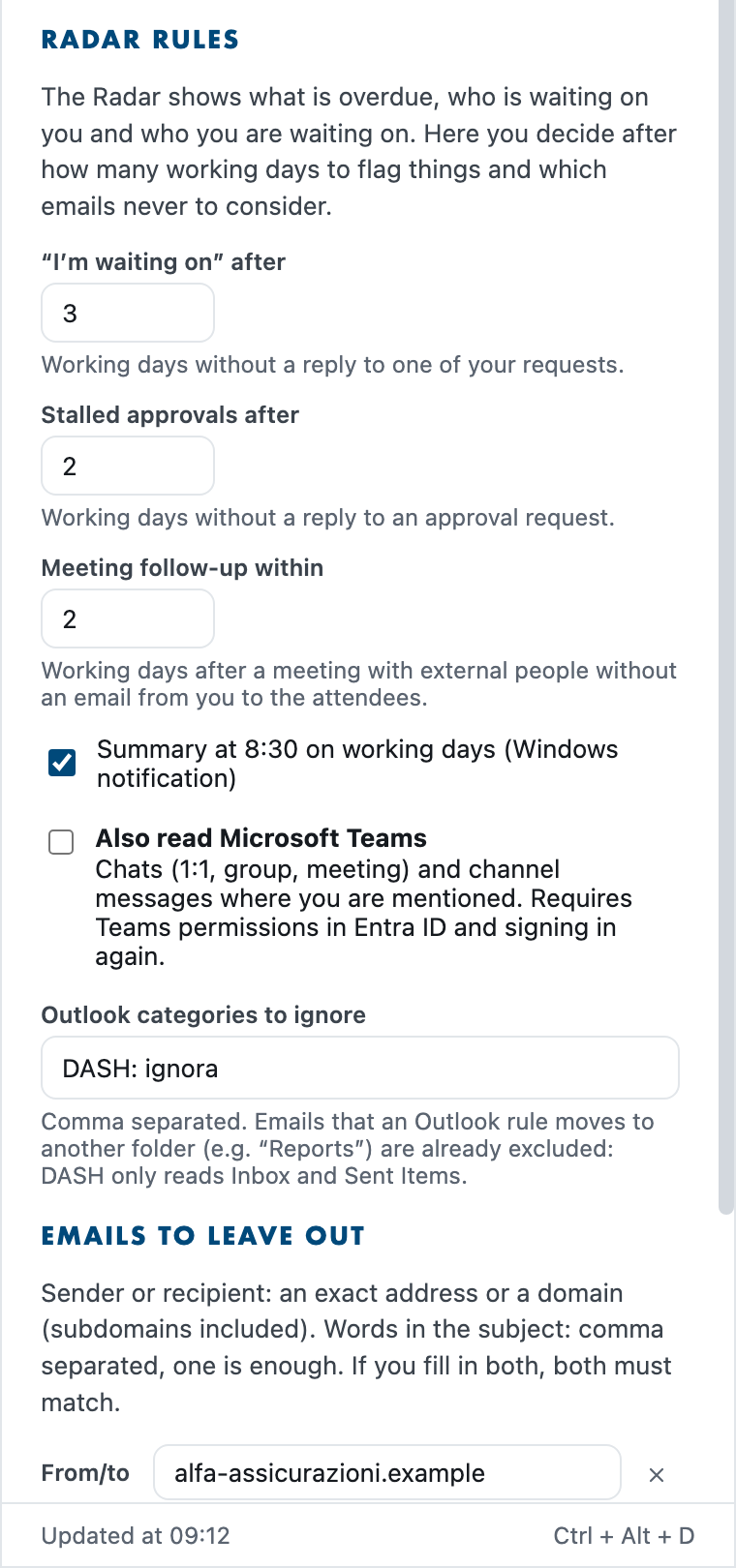
Open them with Rules, at the top right of the Radar.
Each rule has two fields; if you fill in both, both must match:
name@client.com) or a domain (client.com, subdomains included);Example: From/to client.com and Subject report, weekly export leaves out that client’s reports, but not their other emails.
At the bottom of the panel, Excluded in the last update (click to open) lists the emails left out and the reason: useful to check that your rules do what you want. Remember to click Save.
With Also read Microsoft Teams on (Radar rules), DASH also considers:
The first time, DASH may ask you to sign in again: Microsoft must confirm the Teams permissions. If Teams cannot be read, a red line «Teams cannot be read» with the reason appears under the Radar title.
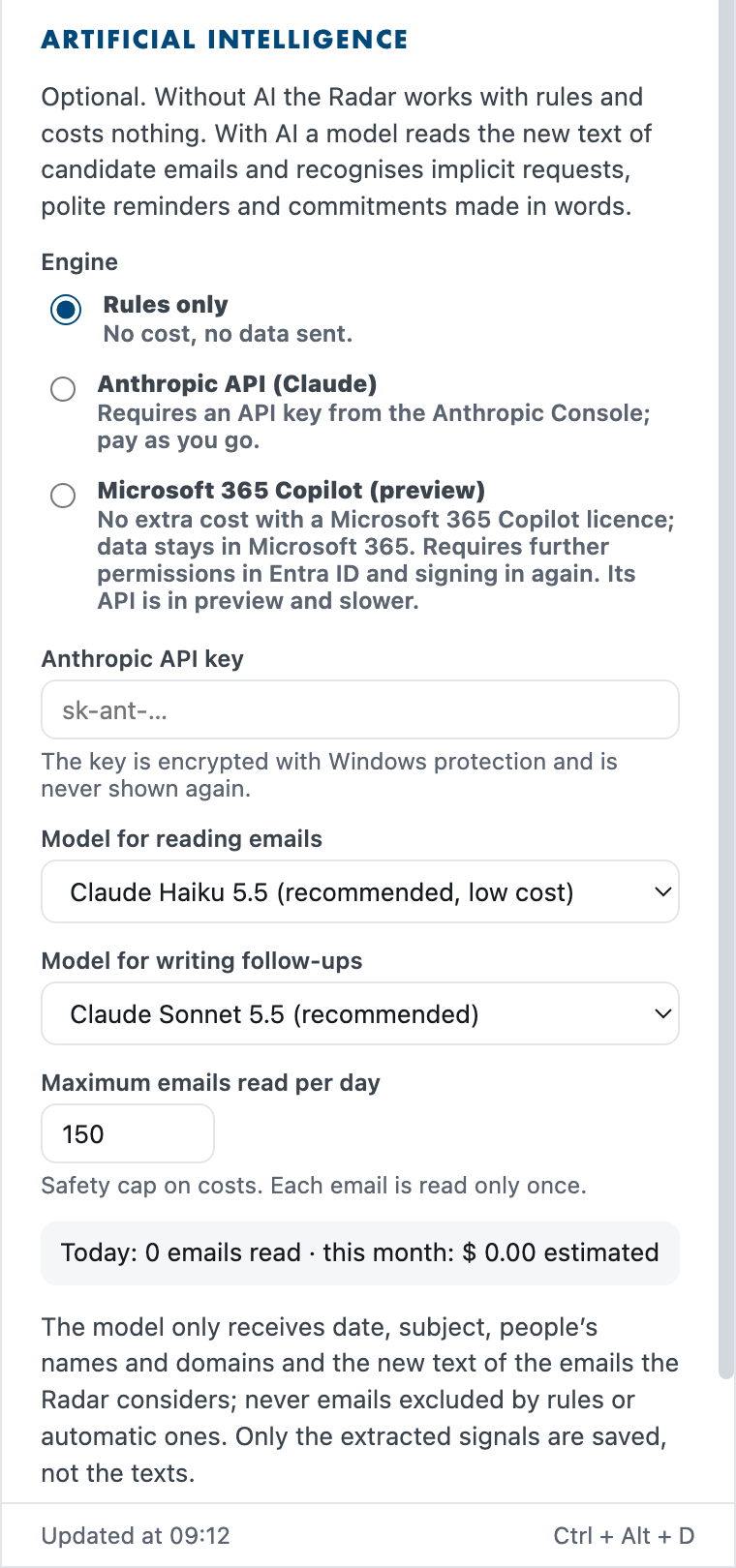
It is optional: without AI the Radar works with rules and costs nothing. With AI a model reads the text of candidate emails and messages and recognises implicit requests, polite reminders and commitments made in words; it also writes the follow-ups.
Open it from Settings › Artificial intelligence… Choose the Engine:
Maximum emails read per day is a safety limit (150 by default); each email is read only once. The box below shows how many emails were read today and, for Anthropic, the estimated cost for the month. The texts written by the AI (summaries, follow-ups) are in Italian for now.
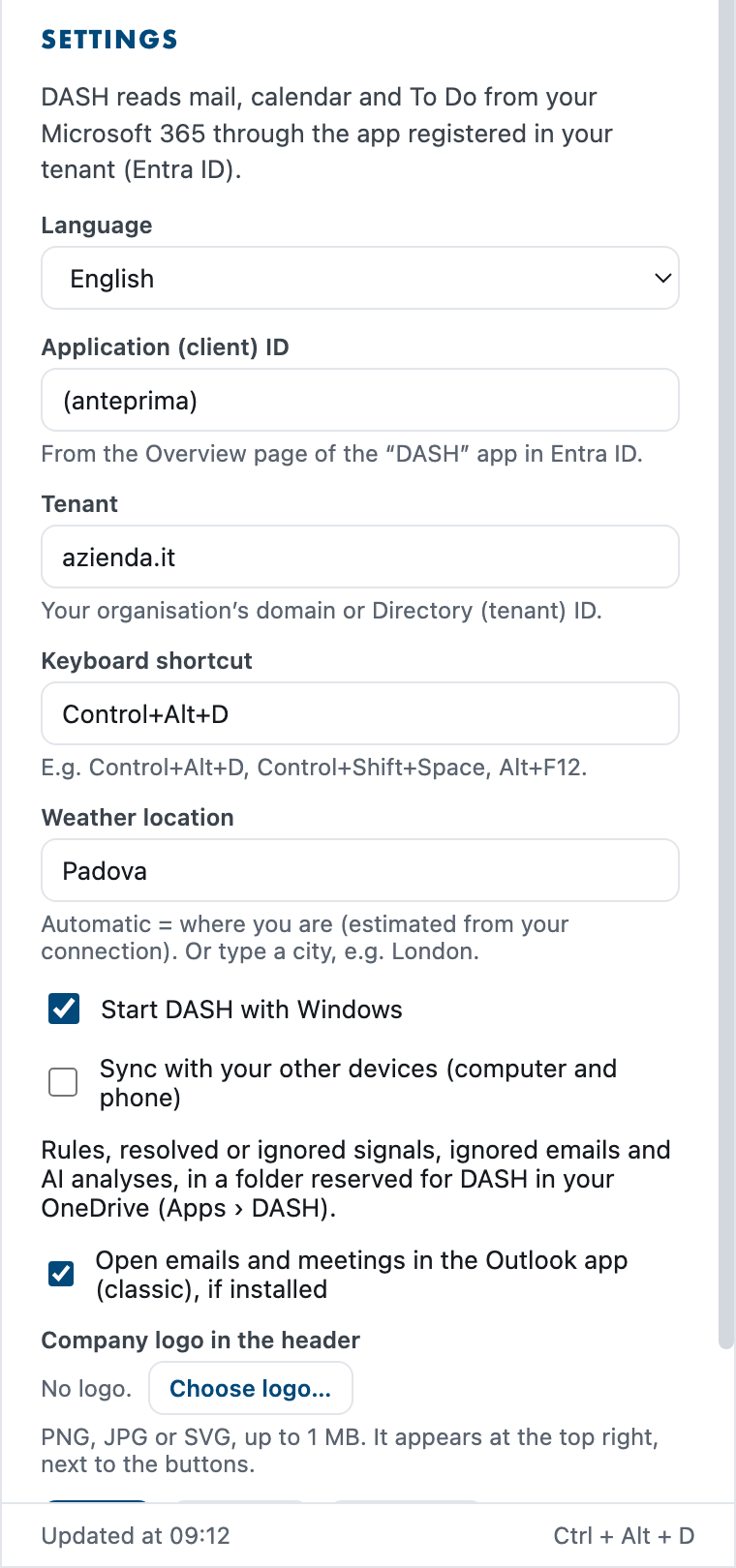
If you use DASH on several devices (for example your PC and your iPhone), turn on Sync with your other devices on each of them. From then on they share:
What stays on each device: Client ID and Tenant, the language, the Anthropic key, the keyboard shortcut, starting with Windows, the logo and the AI costs. Sync happens at every update and a few seconds after each of your actions; the time of the last sync appears under the checkbox. If two devices change the Rules almost at the same time, the last change wins.
The data is kept in a file in a folder reserved for DASH in your OneDrive (Apps › DASH): do not move or edit it. The first time, DASH may ask you to sign in again, because Microsoft must confirm the permission for that folder.
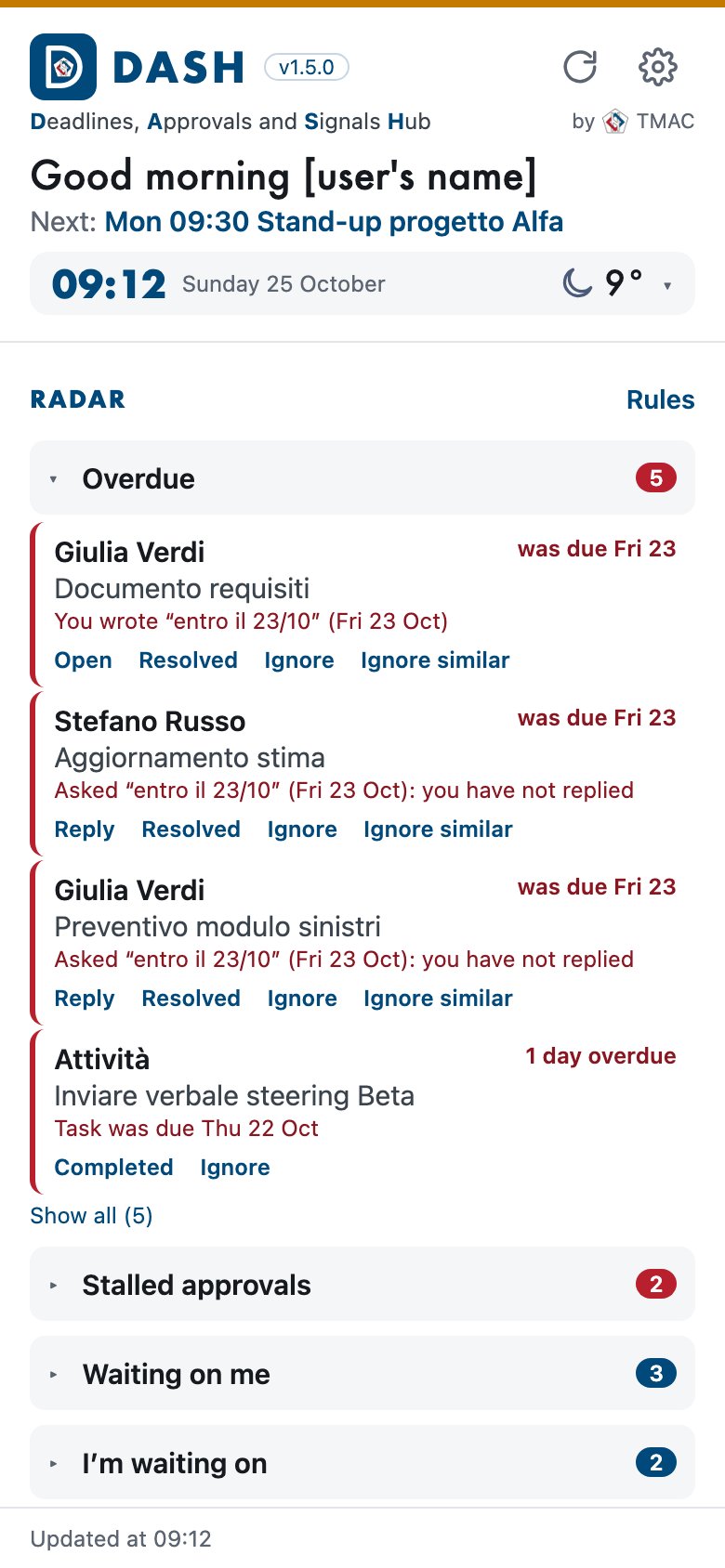
On iPhone DASH has the same interface and the same Radar as on the PC: same signals, same actions, same rules and the same artificial intelligence. At the first start you enter the same Application (client) ID and Tenant as on the PC, then Sign in.
What is different from the PC:
To have the same rules, hidden signals and AI analyses on the phone as on the PC, turn on Sync with your other devices on both (chapter 10).
For now DASH for iPhone and iPad is not on the App Store: you install it with TestFlight, Apple’s app for test versions.
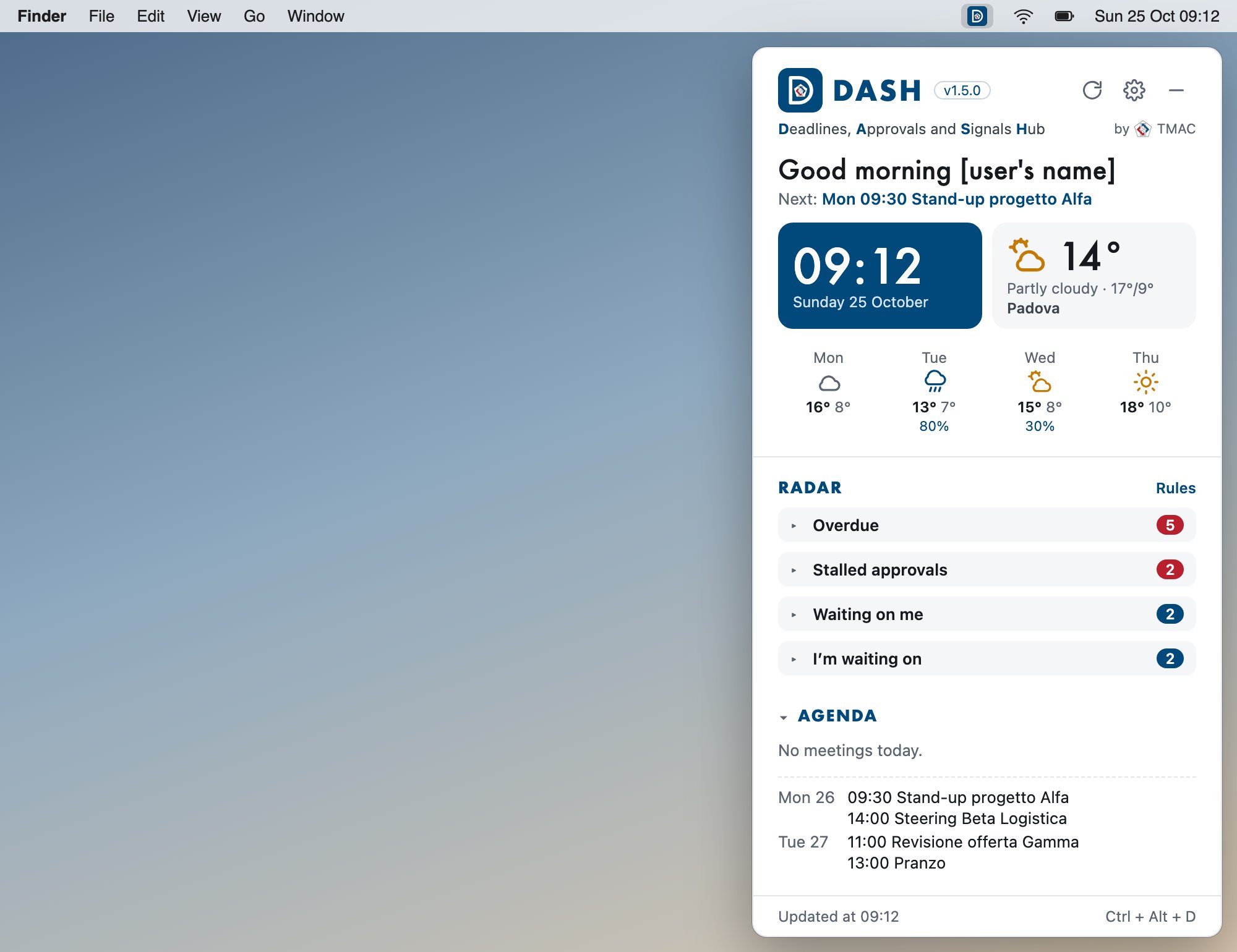
On the Mac DASH is the same program as on the PC: same panel, same Radar, same rules, same artificial intelligence and same sync. You need a Mac with an Apple processor (M1 or later): this version does not open on Macs with an Intel processor.
DASH-1.6.4-mac.dmg.Command+Shift+D.On Android phones DASH is the same app as on iPhone: same interface, same Radar, same actions, same rules, same artificial intelligence and same sync. All of chapter 11 therefore applies, including the two columns with the phone in landscape or on open foldables. Android 7 or later is required.
For now DASH for Android is not on the Play Store: you install it from the file DASH-1.6.4-android.apk, which you receive by email, OneDrive or Teams.
.apk file over the old one: settings, rules and sign-in are kept.| What you see | What to do |
|---|---|
| DASH «has disappeared» or seems closed | It is behind the other windows: Ctrl + Alt + D or click the icon in the notification area. If the icon is not there, start it from the Start menu. |
| «Session expired: sign in again.» | Click Sign in and sign in again with your account. It happens after a password or permission change. |
| A message saying the shortcut is already used by another program | Choose another shortcut in Settings (e.g. Control+Alt+Shift+D). |
| «Admin approval required» at sign-in | The Microsoft 365 administrator must grant consent to the DASH app (Appendix). |
| «Teams cannot be read» in the Radar | Teams permissions are missing: tell your administrator. You can turn off Teams in the Rules. |
| «AI: error» at the top of the Radar | Move the mouse over it to read the reason. Copilot: requires the Microsoft 365 Copilot licence and permissions; Anthropic: invalid key or no credit left. |
| Under «Sync…»: «OneDrive denies access» | The Files.ReadWrite.AppFolder permission is missing: tell your administrator (Appendix), then sign out and sign in again. |
| A wrong signal that keeps coming back | Use Ignore similar, or a rule or an Outlook category. |
| A signal you expected is missing | Check «Excluded in the last update» in the Rules; remember that DASH looks at the last two weeks and only at Inbox and Sent Items. |
%APPDATA%\DASH folder: delete it if you want to remove everything.DASH uses an app registration in Entra ID with delegated permissions: each person sees only their own mailbox, and data travels only between the PC and your organisation’s Microsoft 365 (TMAC receives nothing). Each organisation uses its own tenant and, for artificial intelligence, its own Copilot licence or Anthropic key.
Once for the whole organisation, the administrator registers DASH in your tenant as follows and gives users the Client ID and Tenant (or the domain name), to be entered at the first start.
https://entra.microsoft.com › Identity › Applications › App registrations › New registration.http://localhost. Register.| When | Permissions |
|---|---|
| Always | User.Read, Mail.Read, Calendars.Read, Tasks.ReadWrite, offline_access |
| With Teams on | Chat.Read, Team.ReadBasic.All, Channel.ReadBasic.All, ChannelMessage.Read.All |
| With sync between devices | Files.ReadWrite.AppFolder (only the DASH folder in the user’s OneDrive, Apps › DASH) |
| With the Copilot engine | Sites.Read.All, People.Read.All, OnlineMeetingTranscript.Read.All, Chat.Read, ChannelMessage.Read.All, ExternalItem.Read.All (all required by the Microsoft 365 Copilot Chat API) |
| With “Flag emails from DASH” | Mail.ReadWrite (only to set and clear the Outlook flag; DASH never deletes or sends email) |
After adding them: Grant admin consent for the organisation. Teams, Copilot and sync permissions are requested from users only if they turn those features on.
For the iPhone app: in Authentication also add the iOS / macOS platform with Bundle ID it.tmac.dash.
For the Android app: in Authentication › Add a platform › Android enter the package name it.tmac.dash and the signature hash Tvy2xt5sIIb4Hyur+URCnvo+YmQ= (the .apk file distributed by TMAC is signed with that key).
DASH · Deadlines, Approvals and Signals Hub · version 1.6 · by TMAC — Where experience matters!